Power By Dholu Production

Responsive Ads Here
Showing posts with label ANDROID. Show all posts

Wednesday, March 21, 2018

How to Hack Someone's WhatsApp Without Their Mobile Phone | Tricks

How to Hack Someone's WhatsApp with Mac Address of the Target Devices Let's See This Artical


In which we will need the MAC address of the target mobile, BusyBox app and Terminal emulator app. You can download both the BusyBox and the Terminal emulator from the Google Play Store. With these three necessities at hand, we can now proceed.

Step 1: Using your smartphone, download, install, and run the BusyBox app. You will be required to create an account.

How to Hack Someone's WhatsApp Without Their Mobile Phone | Tricks


Step 2: Take the target mobile phone and obtain its MAC address. Follow these steps to you get the MAC address “Settings> About Phone> Status> MAC Address. Write this address down as you are going to need it.

How to Hack Someone's WhatsApp Without Their Mobile Phone | Tricks

Step 3: Launch the Terminal App and type $ su and press "Enter".

Step 4: In the next step, type "$ busybox iplink show eth0" and hit "Enter".
NOTE: If you get a "device not found" message, enter wlan0 instead of eth0 in the spaces provided.

Step 5: In the next step, type "$ busybox ifconfig eth0 hw ether" followed by your MAC address. type your victim's MAC Address XX:XX:XX:XX:XX:XX
NOTE: You have now successfully spoofed your MAC address. You can confirm this by entering the following command "$ busybox iplink show eth0".

Step 6: Launch your WhatsApp and enter the phone number of the target WhatsApp account.

Step 7: Before you can completely hack the victim's WhatsApp you will be required to confirm the hack. In this case, choose call verification.

Step 8: Write down the code that you will receive and enter it into the box provided on your smartphone.

It is simple as that. From this point henceforth, you will be receiving each and every message that leaves and enters the target phone WhatsApp account

Thursday, January 4, 2018

THE BEST UPCOMING 2018 ANDROID APPS FOR EARN FREE BITCOINS WITHOUT USING YOUR HASH POWER | Bitcoin Mining

Now in these days Bitcoins are becoming very popular in the global marketing. Most of us still don’t know about what is bitcoins? And how we earn bitcoins very easily. For many of us, earning bitcoin is like a finding healthy food. We know the benefits of bitcoins very well but we can’t justify it real cost. It is not really simple to find interesting ways to earn bitcoins online. Mobile phones are becoming so popular in today’s life. Now everyone is using mobile phones in the world.

Best Bitcoin Miner App For Android


Do you know about that we can earn bitcoins very easily with the help of android mobile? Yes we can. There are lots of apps are available in Play store to earn bitcoin very easily and most of them are totally free. But beware of that most of them are scam or not real. But some of them are really effective and handily useful.

1) Bitcoin Farm:


Bitcoin Farm is also a very cool app to earn Satoshi for free. But It gives low amount of Satoshi. Bitcoin Farm is an easy to use Bitcoin Faucet for your phone and tablet. Within 60 Minutes your Bitcoin Flower will grow and you can harvest it to earn Satoshi.

2) Bitcoin Miner App- Earn Free Satoshis:

Bitcoin Miner App- Earn Free Satoshis


Bitcoin Miner App is a most popular new app for earn bitcoins free. It allows you to make free bitcoins, not by mining but by displaying add.It is paying very high amount of free Satoshi in interval of 1 hour.

3) BTC Safari:


BTC Safari is a free Bitcoin Faucet app for Android devices that will pay you every 15 minutes allowing you to earn up to 400 Satoshi per claim.

The app is simple to use and does not have too many features. It is a little clumsy looking, however it works as it should.

4) Free Bitcoin Miner:


Just launch our Free Bitcoin Miner and after a half of an hour close the advertisement and gain your own free BTC! This 30 minutes of your waiting, you are able to do what you like, for instance, play games, read news, watch films or anything you want.

5) BitMaker - Free Bitcoin:


Bitmaker is a quality Bitcoin faucet app that pays you  every 30 minutes. This app has a nice interface with a lot of extra features compared to its rivals. Bitmaker has offers that reward you with Bitcoin and has a scoreboard where you can compare your earnings with your friends and other users of the app.

Tuesday, December 26, 2017

HOW TO DECRYPT AND EXTRACT WHATSAPP DATABASE | Tricks

Nowadays , WhatsApp has become the best interoperable Instant Messaging and VoIP (Voice over Internet Protocol) and Multimedia platform for the end users that provides them an well-serviced environment for Instant Messaging , Voice/Video Calling , File Transfer such as Documents , Videos and Images easily at the scale with high-end encryption encapsulated into it globally .

Read Full Artical click here  <-- This Artical is easy to understand Decrypt Database. so i just suggest read this artical . 

WhatsApp basically uses a standardised protocol for Instant Messaging called Extensible Messaging and Presence Protocol (XMPP).  It basically uses one of it's most valuable service called Jabber for user account at the time of Installation using the phone no. as the username i.e. (Jabber ID: [phone number]@s.whatsapp.net) and then it estimates all smart phones from it's address book with the help of it's centralised database for adding contacts automatically to their contact list and then it also allows Multimedia Messaging to the end users with the help of HTTP server and generates a hyperlink to the content with Base64 encoded.


Whatsapp Database Decryption


Before Demonstration , I'd like to write about the working principle of WhatsApp high-end Encryption

As you know that the Multimedia Messaging and other type of data are simply the decrypted data and need to be encapsulated in order to securely communicate with each other  through a communication channel.


So Firstly ,  the Plain Text is encrypted using Private Key for the Data Encapsulation

i.e. PlainText + Secret Key == Data Encapsulation (Encrypted Data)

Once the data has been received by the receiver needs to be decrypted i.e. plain text using the same Secret Key for it

i.e. Data Encapsulation (Encrypted Data) + Secret Key == PlainText (Original Data)

Read Full Artical click here

The Main Problem with the Technique is the usage of Same Key for both encryption and decryption
So , if the sender sends the data to the receiver , the third party is likely to be able to eavesdrop and forge and sniff the conversation , data etc between sender and receiver which could create a massive problem to both of them

In order to overcome the problem , WhatsApp basically uses Two Keys for both encryption and decryption. These two keys are mathematically so related to each other that one key can encrypt the PlainText to Encrypted Data which can be later on decrypted by receiver


Both of your public and private keys are generated on your smartphone at the time of installation , So what does that mean by high-end encryption

As your private key is generated on your mobile , The third party Attacker cannot decrypt your messages due to the implementation of private key.

The 60 digit number shown above is shorter form of addition of your and your contact's public key. Remember, you use your contact's public key to encrypt outgoing message and your contact uses their private key to decrypt and vice versa.

Scanning QR code or comparing those 60 digit number is a way to verify and ensure that you are using correct public key of your contact and no one (whatsapp server or others) is spoofing you with wrong public key.

Now let me cut to the chase and write about the mechanism of both decryption and extraction of WhatsApp Database

You got to be thinking that it's impossible to just decrypt and extract the WhatsApp Database so easily with such high-end security attached to it

But let me tell you straight that it's possible and very easy to decrypt and extract the Database easily with the help of built-in tools available today in this technology

After all , Nothing is Impossible in today's technology

If there exists the technology then obviously there exists security tools too

Read Full Artical click here

There are following prerequisites software and tools need to be downloaded and installed before it

1. Crypt Key Extractor (https://codeload.github.com/EliteAndroidApps/WhatsApp-Key-DB-Extractor/zip/master)
2. Operating System (Windows , Linux , Mac OS X)
3. Java (https://www.java.com/en/download/)
4. ADB i.e. Android Debug Bridge (https://developer.android.com/studio/releases/platform-tools.html#download)
5. Android Device (with Android 4.0 or Higher than it)
6. USB Debugging must be enabled on the target device
7. Web Browser
8. Internet
9. USB (Universal Serial Bus)

In order to enable USB Debugging , Please navigate to Settings --> Developer Options -->  Enable USB debugging. Please tap multiple times on Build Number  under About Phone unless and until you become the developer if you find no developer option under the Settings option

Note :

01. I apologise Linux and Mac OS X users for the following below demonstration
02. Windows end users must have minimum knowledge about Windows OS for it
03. This is to be advised that it's for the education purpose , any illegal activity against any                      other unauthorised devices could lead to jail

Are you finally ready to decrypt and extract WhatsApp Database

So , Let's Get Started

04. Download prerequisites software and tools
05. Extract it to your preferred drive
06. Open up your Command Prompt
07. Navigate to the directory where WhatsApp Key DB Extractor installed
08. Connect your device via USB and change the mode from charging to media
09. Unlock your screen and wait for Full Backup option
10. Enter your backup password or leave the blank (if none set)
11. Tap on Back up my data.

Read Full Artical click here

Note : Please wait as It could take few minutes depending upon your size of data

12. Confirm backup password on your Command Prompt and check for extracted folder.
13. You'll find many files there such as axolotl.db , chatsettings.db , msgstore.db, wa.db.
14. As all these files are in SQL format visible through SQLite Software
15. Visit https://sqliteonline.com for Online Viewing
16. Click on Open DB and select them all in order to view the files online through the website
17. Done
I hope you can now easily decrypt and extract WhatsApp Database.

How to Decrypt WhatsApp crypt12 Database Messages | Tricks

WhatsApp backup conversation files are now saved with the .crypt12 extension. From crypt9, they seem to be using a modified version of Spongy Castle – a cryptography API library for Android.

Decrypt Database
Decrypt Database

All the findings below are based on reverse engineering work done on WhatCrypt and Omni-Crypt. I would like to highlight that IGLogger proved to be a very useful tool when it came to smali code debugging.

Extract Key File

To decrypt the crypt12 files, you will first need the key file. The key file stores the encryption key, K. WhatsApp stores the key file in a secure location: /data/data/com.whatsapp/files/key.
If your phone is rooted, extracting this file is easy. If your phone is not rooted, refer to instructions from WhatCrypt and Omni-Crypt for details on extracting the key file. The idea is to install an older version of WhatsApp, where Android ADB backup was still working and extract the key file from the backup.

Extract crypt12 Backup File

Pull the encrypted WhatsApp messages file from your phone using ADB.
$ adb pull /sdcard/WhatsApp/Databases/msgstore.db.crypt12

Decryption Keys

This section is just for your information and you can skip this section.
The encryption method being used is AES with a key (K) length of 256 bits and an initialisation vector (IV) size of 128 bits. The 256-bit AES key is saved from offset 0x7E till 0x9D in the file. Offsets start from 0x00. You can extract the AES key with hexdump and assign the value to variable $k.
$ k=$(hexdump -ve '2/1 "%02x"' key | cut -b 253-316)
The $k variable will hold a 64-digit hexadecimal value in ASCII that is actually 256 bits in length.
The IV or the initialisation vector is saved from offset 0x33 till 0x42 in the crypt12 file. The IV value will be different for every crypt12 file.
$ iv=$(hexdump -n 67 -ve '2/1 "%02x"' msgstore.db.crypt12 | cut -b 103-134)
The K and IV extraction method is similar to what we have done for crypt8 files before.

Strip Header / Footer in crypt12 File

Again, this section is just for your information and you can skip this section.
Before we start the decryption process, we will need to strip the 67 byte header and 20 byte footer from the crypt12 file.
$ dd if=msgstore.db.crypt12 of=msgstore.db.crypt12.enc ibs=67 skip=1
$ truncate -s -20 msgstore.db.crypt12.enc
The above dd command will strip the the first 67 bytes from the crypt12 file and save it to a file with extension crypt12.enc. The truncate command will strip the last 20 bytes from the crypt12 file.

Decrypt crypt12 File

As the WhatsApp AES cryptography API library seems to be a modified version, we will no longer be able to use openssl to decrypt the crypt12 file. I have yet to determine what has been modified.
To decrypt crypt12 files, I have written a simple Java program that will use the modified cryptography API library instead. For the cryptography API library, I have extracted the modified Spongy Castle cryptography class files from the Omni-Crypt APK file using dex2jar. You can find the Java program and crypto library over here at GitLab.
The Java program will create 3 output files:
  • msgstore.db.crypt12.enc – encrypted file with header and footer stripped.
  • msgstore.db.zlib – decrypted file in zlib format.
  • msgstore.db – decrypted sqlite3 database file.
Below is how you can compile and run the Java program.
$ git clone https://gitlab.com/stackpointer/whatsapp-crypt12.git

$ cd whatsapp-crypt12/

$ javac -classpath "lib/whatsapp_spongycastle.jar:." crypt12.java

$ cp ../whatsapp.data/key .

$ cp ../whatsapp.data/msgstore.db.crypt12 .

$ java -cp "lib/whatsapp_spongycastle.jar:." crypt12

K:XXXXXXXXXX
IV:YYYY
creating encrypted file with header/footer stripped: msgstore.db.crypt12.enc
creating zlib output file: msgstore.db.zlib
creating sqlite3 output file: msgstore.db

$ ls -l
total 136724
-rw-r--r-- 1 ibrahim staff     4339 Oct  9 16:05 crypt12.class
-rw-r--r-- 1 ibrahim staff     5459 Oct  9 16:05 crypt12.java
-rw-r--r-- 1 ibrahim staff      158 Oct  9 16:05 key
drwxr-xr-x 2 ibrahim staff     4096 Oct  9 16:05 lib
-rw-r--r-- 1 ibrahim staff     1089 Oct  9 16:05 LICENSE
-rw-r--r-- 1 ibrahim staff 62692352 Oct  9 16:06 msgstore.db
-rw-r--r-- 1 ibrahim staff 25757610 Oct  9 16:05 msgstore.db.crypt12
-rw-r--r-- 1 ibrahim staff 25757523 Oct  9 16:05 msgstore.db.crypt12.enc
-rw-r--r-- 1 ibrahim staff 25757507 Oct  9 16:06 msgstore.db.zlib
-rw-r--r-- 1 ibrahim staff     1376 Oct  9 16:05 README.md

$ file *
crypt12.class:           compiled Java class data, version 52.0 (Java 1.8)
crypt12.java:            C source, ASCII text
key:                     Java serialization data, version 5
lib:                     directory
msgstore.db:             SQLite 3.x database, user version 1
msgstore.db.crypt12:     raw G3 data, byte-padded
msgstore.db.crypt12.enc: data
msgstore.db.zlib:        zlib compressed data

Final Words

To use the Java decryption tool, you will need to use OpenJDK. Oracle require JCE Provider libraries to be signed. OpenJDK does not have this requirement. If you try running the Java program on Oracle JDK, you will most likely get the following exception.
Exception in thread "main" java.lang.SecurityException: JCE cannot authenticate the provider SC

Sunday, December 10, 2017

CIA SPIES INDIA’S BIOMETRIC AADHAAR DATABASE IN REAL TIME | News

Aadhar Card database can easily be accessed by CIA Covert Operations via UIDAI certified company Cross Match. Today WikiLeaks published secret documents from the Express Lane Malware project of the CIA Spy operations. These documents show one of the cyber operations the CIA conducts against other govt. agencies. Let’s understand the process how can CIA hacks indias aadhar card database.

Aadhar & WiKi & CIA
Aadhar & WiKi & CIA


The OTS (Office of Technical Services), a branch of the CIA, has a biometric collection system that is provided to govt. agencies around the world — CIA’s ExpressLane is a covert information collection tool that is used exfiltrate data collections from such biometric systems provided to govt agencies around the world.

ExpressLane is installed and run with the cover of upgrading the biometric software by OTS agents that visit the Liaison sites. This procedure will remain unsuspicious, as the data exfiltration disguises behind a Windows installation splash screen.

The core components of the OTS system are based on products from Cross Match, a US company specializing in biometric software for law enforcement and the Intelligence Community.

Cross Match Is certified by UIDAI (India Govt’s Institute Responsible For Aadhar)

Cross Match was one of the first suppliers of biometric devices Aadhaar program. Cross Match received the Certificate of Approval for its Guardian fingerprint capture device and the iScan dual iris capture device on October 7, 2011. Both systems utilize Cross Match’s patented Auto Capture feature, which quickly captures high-quality images with minimal operator involvement.
Nearly all of the UIDAI certified enrollment agencies use Cross Match devices across India.

 Components of India’s Aadhar Program:

The foundation of the Aadhaar program is based on biometric and demographic data that is unique to each citizen. This data can only be collected by leveraging biometric devices and compatible software – the second and third stages of the Aadhaar value chain.

All the devices and compatible software are provided by Cross Match [ExpressLane Data Collection Malware Has been developed exfiltrate databases from Cross Match Products]

Read the Manual Of Installing Aadhar Enrollment Software (You will see Cross Match products are used for it)

How CIA agents can access Aadhaar database in real-time

A number of the CIA’s electronic attack methods are designed for physical proximity. These attack methods are able to penetrate high-security networks that are disconnected from the internet. In these cases, a CIA agent or spy physically infiltrate the targeted workplace. The attacker is provided with a USB containing malware developed by CIA for this purpose(Express Lane), which is inserted into the targeted computer.
The attacker then infects and exfiltrates data to removable media. For example, the CIA attack a system. To witnesses, the spy appears to be running a program showing videos (e.g VLC), presenting slides (Prezi), playing a computer game (Breakout2, 2048) or even running a fake virus scanner (Kaspersky, McAfee, Sophos).
ExpressLane comes with a standardized questionnaire i.e menu containing questions that CIA spy fills out. The questionnaire is remotely used by the CIA’s OSB (Operational Support Branch) to transform the requests of spies into technical requirements for hacking attacks. The questionnaire allows the CIA to communicate with Express Lane Malware.

See Leaked Wikileaks Documents on CIA’s ExpressLane Malware

Saturday, October 28, 2017

Finally now WhatsApp allow you delete message that you have sent

WhatsApp version 2.17.395 is included delete messages for everyone 
It’s a component that clients have been basically asking for until the end of time. It’s a component that has been reputed as being in progress for a long while and tried for various months. Presently it has at last arrived. You can, finally, erase sent messages in WhatsApp on account of “Erase for everybody.”
At this moment, the application’s erase highlight is genuinely futile as it just evacuates a message for the individual who sent it. That implies that those the message wasn’t proposed for a can, in any case, read it.
With the new feature it potentially this allows you to delete a message before anyone else sees it. Great news for anyone who’s ever sent a message and then immediately regretted it, which is probably most of us.
A hold press on a message brings up “delete” or “cancel” just like before, but with the new option “delete for everyone” as well. “Delete” just removes it from your end, but “delete for everyone” removes it for all participants in a conversation.


To delete messages for everyone – WhatsApp

Deleting messages for everyone allows you to delete specific messages you have sent to either a group or an individual chat. This is particularly useful if you sent a message to the wrong chat or if the message you sent contains a mistake.
Messages you successfully delete for everyone will be replaced with “This message was deleted” in your recipients’ chats (*). Similarly, if you see “This message was deleted” in a chat, it means that the sender deleted their message for everyone.

You can only delete messages for everyone for up to seven minutes after sending. Once seven minutes have passed, there is no way to delete messages for everyone. To delete messages for everyone:
  1. Open WhatsApp and go to the chat containing the message you wish to delete.
  2. Tap and hold the message > choose Delete from the menu. Optionally, select more messages to delete multiple messages at once.
  3. Tap Delete Delete for Everyone.

Wednesday, October 11, 2017

How To Fully Control Your Android Device from Any Computer | Tricks

How To Fully Control Your Android Device from Any Computer

Control Your Android Device from Any Computer 


Step 1: Enable ADB on Computer (Windows Only)

If you’re using a Windows PC, you’ll need to install the ADB drivers. So click this link and the driver file should begin downloading immediately. When it’s finished, go ahead and launch it, then follow the prompts for installation.

Control Your Android Device from Any Computer 

Step 2: Enable USB Debugging on Your Android

Next, you’ll have to enable ADB on your Android device, then make sure that it’s set to always allow connections from your computer. So connect your phone or tablet to your computer with a USB data cable, then open the Settings menu on your Android device.

From here, head to the “Developer options” menu (if you don’t see such an entry, make sure to enable Developer options first). Next, enable the “USB debugging” option, then press “OK” on the popup.

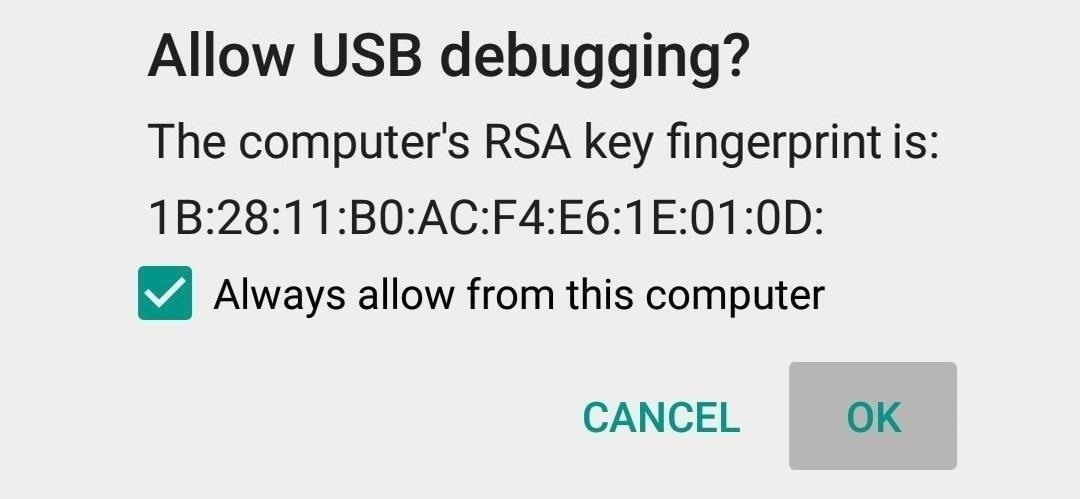
At this point, with your phone still connected to your computer, you should see an additional popup asking if you’d like to allow an ADB connection from this device. Tick the box next to “Always allow from this computer,” then press “OK” on this popup.

Control Your Android Device from Any Computer 

Step 3: Install the Vysor App for Chrome

Next up, head to this link from the Google Chrome browser on your computer. From here, click the “Add to Chrome” button at the top of the screen to install the Vysor Chrome app.

Control Your Android Device from Any Computer 

Once Vysor’s been installed, click “Launch App,” or open the Chrome App Launcher from the bookmarks bar near the top of your screen, then click the Vysor icon.

Control Your Android Device from Any Computer 

Step 4: Connect Vysor to Your Android Device

With Vysor installed and ADB set up, using your computer to view and control your Android device will be incredibly easy from now on. Start by clicking the “Find Devices” button on Vysor’s main menu.

Control Your Android Device from Any Computer 

From here, choose your Android device from the list, then click “Select,” then your screen should start being mirrored over to your computer within seconds. If you’re having trouble connecting here, revisit Step 1 of this tutorial.

Control Your Android Device from Any Computer 

Step 5: Control Your Android Device from Your PC

Now that you’re connected, you should see your Android device’s display in a window on your computer. From here, you can use your mouse or keyboard to navigate your phone or tablet as you normally would.

There are a few keyboard shortcuts that you should be aware of, though. Use the ESC key to simulate the back button, the F1 key to access Android’s menu function, and the Home key to head back to your home screen quickly. On a MacBook, these keyboard shortcuts may vary or might not work at all.

Control Your Android Device from Any Computer 

If you open an app with landscape orientation, the window on your computer will automatically rotate to fit the contents of your screen. The same goes if you want to resize this window—just drag from one of the corners and the contents will scale up or down to fit the window on the fly.

Control Your Android Device from Any Computer